IJ Start Cannon– If your Canon MF Scan Utility suddenly stopped working after a Windows update (24H2), you’re not alone. Can’t Scan After Windows 24H2 Update? Here’s How to Fix It (Canon imageCLASS)

Step 1: Install the Latest Windows Fix (KB5053656)
Microsoft released an update that addresses this exact issue.
Open Settings > Windows Update
Check for updates and look for KB5053656
Download and install it
After the restart, reinstall your Canon drivers
This step alone has worked for many users.
Step 2: Reinstall Your Scanner Drivers
If it still doesn’t work, try this:
Right-click the Start Menu, then open Device Manager
Expand Imaging devices
Right-click your Canon scanner, choose Disable
Right-click again and select Update Driver
Choose Browse my computer
Select the correct Canon device and finish
Restart your PC and test the MF Scan Utility again
Do this for each Canon scanner listed, especially if you see duplicates.
Step 3: Run Canon’s Repair Tool (Optional but Helpful)
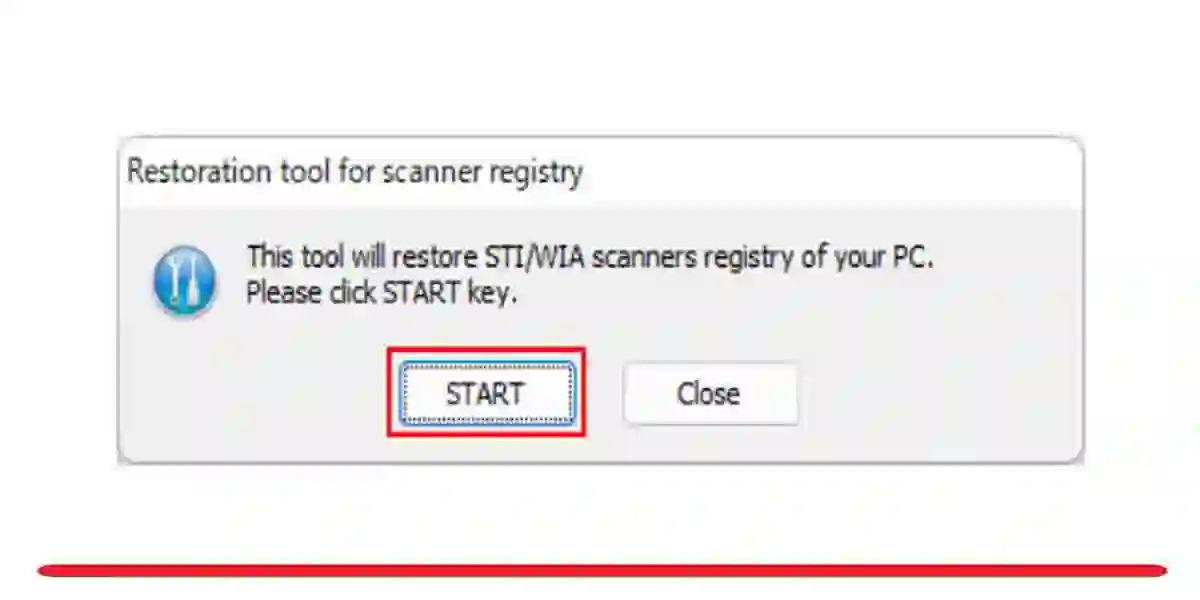
Canon has released a small tool called RepairReg.exe to fix registry issues caused by the update.
Download and run the tool (it’s very simple)
Click Start, let it do its thing
Restart your PC
Try scanning again
This works best after installing the Windows update and re-adding the driver.
Step 4: Use Windows Scan as a Backup
If MF Scan Utility still doesn’t work:
Try using the Windows Scan app
Or open Windows Fax and Scan (built-in)
These tools often still work even when Canon’s app doesn’t
See:
What Happened?
The Windows 11 24H2 update broke part of the system that Canon’s scanner software uses (called WIA/eSCL). Microsoft has since released patches, but some users still need to reinstall drivers or run Canon’s fix to get things working again.
Fast Solution
| Fix | What to Do |
|---|---|
| ✅ Windows Update | Install KB5053656 |
| 🔄 Reinstall Driver | Through Device Manager |
| 🛠 Canon Fix Tool | Run RepairReg.exe |
| 🖨 Use Alternative | Try Windows Scan or ScanGear MF |