The Canon MAXIFY GX5030 is one of those printers that doesn’t try to impress you with flashy features. It’s built with a clear purpose: handle steady, day-to-day printing at a low running cost. Part of Canon’s MAXIFY MegaTank lineup, it’s aimed squarely at small businesses and home offices that print regularly and are tired of constantly buying cartridges. Get the latest Canon Maxify GX5030 Driver, Software on the link we provide at the bottom of this article.
Design and First Impressions
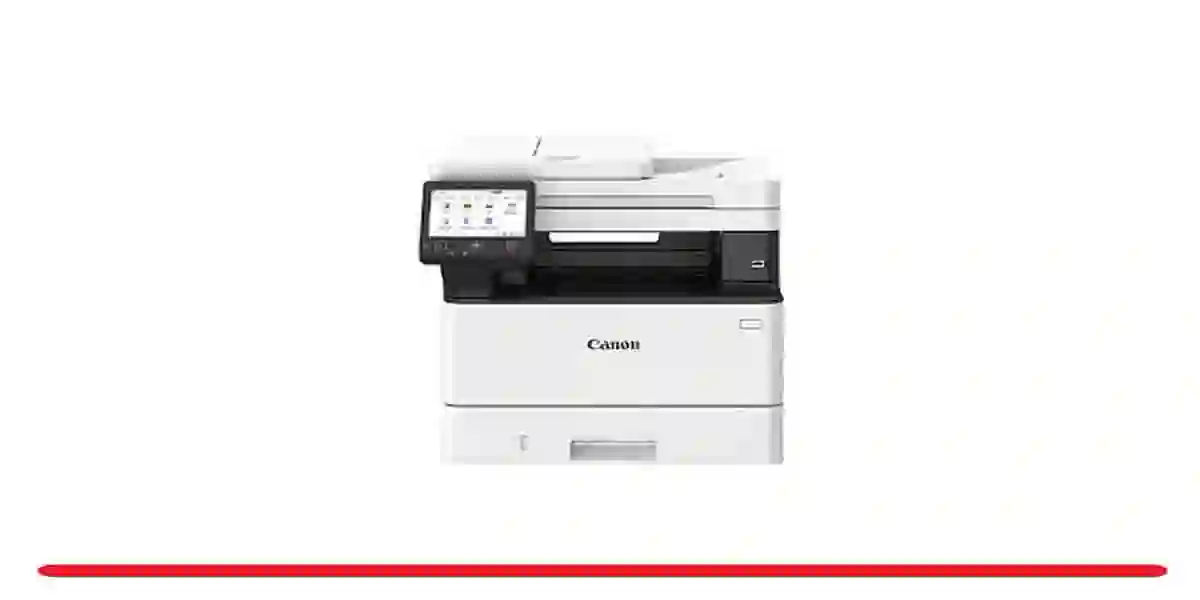
Out of the box, the GX5030 looks simple—matte black, boxy, and business-like. It’s roughly 40 cm wide, so it fits comfortably on a desk or shelf without dominating the whole space. At around 10–11 kg, it’s solid but still manageable if you need to shift things around.
The control panel has a small color LCD with physical buttons. No big touchscreen here, but honestly, for everyday tasks like checking ink levels or making a quick copy, it doesn’t feel like anything’s missing.
Setup is refreshingly straightforward. You fill the four GI-series bottles—pigment black for crisp documents and dye-based colors for graphics.
Connecting it to Wi-Fi through the Canon PRINT app usually takes about 10–20 minutes from unboxing to printing a test page. AirPrint works almost immediately on iPhones, and Android printing is smooth as well. USB is there if you prefer a wired setup.
Paper handling is practical. The rear tray holds up to 250 sheets of plain paper, and there’s a slot for envelopes or thicker media. The scanner is flatbed only—so if you’re scanning a stack of documents, you’ll need to flip each page manually. For occasional scans, that’s fine. For heavy admin work, it’s something to consider.
Specs That Actually Matter in Real Life
On paper, the GX5030 is a print–scan–copy machine (no fax). But what really matters is how those specs translate into everyday use.
The pigment black ink is a standout. Text prints come out deep and sharp, and they don’t smudge easily—even if someone handles the paper a lot or spills a drop of coffee. That makes a noticeable difference for invoices, contracts, and receipts.
Color output is vibrant enough for charts, product sheets, or simple promotional flyers. Resolution sits around 600 x 1200 dpi, which is more than sufficient for business documents.
Speed-wise, it feels quick without being unrealistic. In draft mode, you’ll see around 18–20 pages per minute in black. In normal settings, it’s more like 15–18 ppm. Color printing is slightly slower, hovering around 13–15 ipm. For everyday office work, that’s perfectly comfortable.
Automatic duplex printing is built in, which saves paper when printing reports or multi-page invoices. The flatbed scanner supports up to 1200 dpi, producing clear digital copies of receipts, IDs, and signed forms.
How It Performs Day to Day
In real use, the GX5030 feels steady and dependable.
- Print a batch of invoices? No drama.
- Run off shipping labels? Smooth.
- Print on standard local paper? Still sharp, with clean edges and no noticeable feathering.
The pigment black ink really shows its value here. Text stays bold and legible even on cheaper paper. It looks professional without needing premium stock.
Colors are lively enough for product images or online listing materials. They’re not photo-lab quality, but they don’t look dull either. If you occasionally print small product shots on glossy paper, the results are perfectly usable—though shadows can look slightly flat compared to dedicated photo printers.
Noise levels are reasonable. You’ll hear it working, but it won’t overpower phone calls or conversations in a small office.
Ink Costs – The Real Advantage
This is where the GX5030 really shines.
The MegaTank bottles are designed for high yield. One full set can produce around 6,000+ black pages and roughly 7,000+ color pages under standard conditions. That translates into a very low cost per page—far lower than traditional cartridge models.
For anyone printing 500 to 1,500 pages a month—orders, invoices, sales notes, labels—the savings become noticeable quickly. Instead of worrying about ink running out every few weeks, you just keep printing.
Maintenance is minimal. The printer performs automatic nozzle checks, and clogs are rare if you print regularly. Genuine Canon ink maintains consistent quality, though some users choose compatible inks for basic text jobs.
Pros and Cons from Real Use
Pros
Extremely low running cost
Sharp, smudge-resistant black text
Automatic duplex printing
Reliable Wi-Fi and mobile printing
Solid build for daily small-business workloads
Cons
Flatbed scanner only (no ADF for multi-page scans)
No fax
Photo quality is decent, not exceptional
Higher upfront price than cartridge printers
No Ethernet on base versions
Who It’s Best For
The GX5030 fits small businesses and home offices that print consistently.
If you run an online shop and print orders and labels daily, it makes sense. If you manage a small store and produce receipts and occasional flyers, it works. Freelancers, tutors, and home-based businesses dealing with mixed black-and-color documents will also benefit.
If you print fewer than 200 pages a month, the upfront investment may not pay off as quickly. And if high-quality photo printing is your priority, a PIXMA line printer would likely suit you better.
Canon Maxify GX5030 Driver Download
IJ Start Canon Maxify GX5030 Set Up Printer Driver for:
- Windows
- Windows Server
- Mac Os X
- Mac Os X Server
- Linux
Canon Maxify GX5030 Driver Download Windows
Free Canon Maxify GX5030 Software Windows
- Download ~~>> Easy Photo Print Editor Software
- Download ~~>> Easy Layout Editor Software
- Download ~~>> IJ Network Device Setup Utility Software
- Download ~~>> IJ Printer Assistant Tool
- Download ~~>> PosterArtist Updater
- Download ~~>> PosterArtist Lite
Canon Maxify GX5030 Driver Download MacOS
- Download ~~>> Set up via the Internet